You’ve booked the flights, found a travel data plan, and then one small question stops you at checkout: does my phone support eSIM? The good news is that you can usually answer it from your sofa, in your phone’s Settings app, before you spend anything.
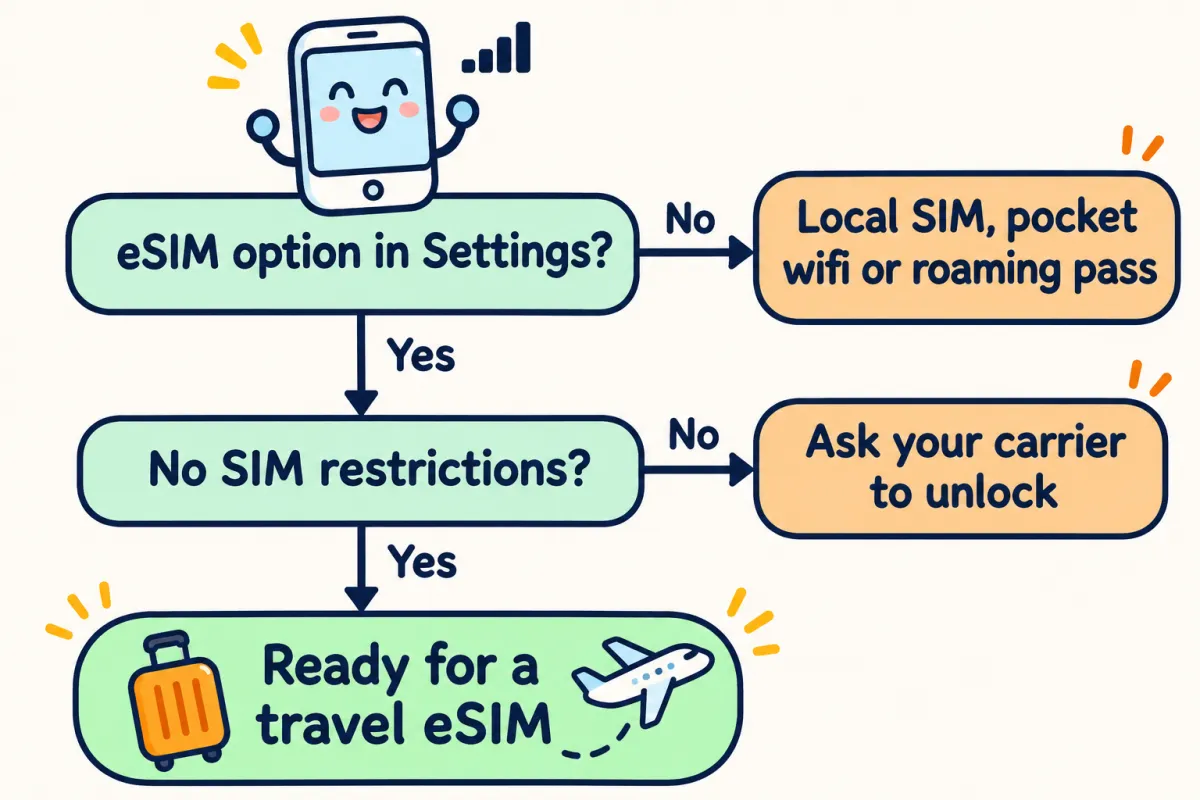
There are really two questions hiding inside that one. First, does your phone have an eSIM chip at all? Second, is it carrier-unlocked, so it will accept an eSIM from someone other than the company that sold you the phone? You need a yes to both. One without the other won’t get you online abroad.
This guide walks you through both checks for iPhone and Android, explains why the country where you bought your phone matters, clears up a few common myths, and shows your options if the answer turns out to be no. No jargon, promise.
Quick answer: Your phone supports a travel eSIM if it has a built-in eSIM chip and is carrier-unlocked. On an iPhone, look for an option to add an eSIM under Cellular or Mobile Service settings, then check Settings > General > About for “No SIM restrictions”. On Android, look for an “Add eSIM” or “Download a SIM” option in your SIM or network settings and ask your carrier whether the phone is unlocked.
What “eSIM support” actually means
A regular SIM card is the tiny plastic chip you slide into a tray on the side of your phone. An eSIM (embedded SIM) does the same job, but it’s a chip built into the phone itself. Instead of swapping cards, you download a plan onto it, usually by scanning a QR code or tapping an install link.
For a travel eSIM to work, your phone needs three things:
- An eSIM chip. This is hardware. If the phone wasn’t built with one, no app or update can add it.
- Carrier-unlocked status. Some phones sold on contracts or payment plans are locked to one carrier. A locked phone may happily run that carrier’s eSIM but refuse anyone else’s.
- Reasonably up-to-date software. Not a strict rule, but newer system versions tend to make adding and switching between eSIMs smoother.
It also helps to know what a travel eSIM is and isn’t. Most travel eSIMs, including ImPumba’s, are data-only. You get mobile internet, not a new phone number, so you call and text through apps like WhatsApp, LINE, KakaoTalk or WeChat. Your home SIM can stay in the phone the whole time.
Planning a trip? ImPumba’s prepaid, data-only travel eSIMs cover Europe, the USA and Canada, South America, Asia, and Australia & New Zealand, plus single-country plans. You install at home right after payment, then switch it on when you land. Your plan days only start counting when your phone first connects in a covered country. See all ImPumba eSIM plans, but do the checks below first.
Does my phone support eSIM? Checking an iPhone
iPhones are the easiest case, because Apple publishes a clear rule. According to Apple, using an eSIM requires an iPhone XS, iPhone XS Max, iPhone XR or a later model (Apple Support). So if your iPhone is newer than those, the hardware box is very likely ticked.
Step-by-step check on iPhone
- Open Settings.
- Tap Cellular (called Mobile Service or Mobile Data in some regions and iOS versions).
- Look for an option such as Add eSIM or Add Cellular Plan. If it’s there, your iPhone has an eSIM chip.
- Not sure which model you have? Go to Settings > General > About and check the model name.
Don’t actually add a plan during this check. You’re only confirming the option exists.
No SIM tray? That’s a clue
If you bought your iPhone in the United States and can’t find a SIM tray, that’s normal: Apple says iPhone 14 models and later purchased in the US have no physical SIM tray and only activate with eSIM (Apple Support). In that case, your phone definitely supports eSIM. You still need to confirm it’s unlocked, though.
Room for your home line and your travel eSIM
A common worry is that adding a travel eSIM will push out your regular number. On a modern iPhone, it won’t: Apple notes you can install eight or more eSIMs on an iPhone and use two phone numbers at the same time (Apple Support). In practice, that means your home line stays put for calls and texts you might still want, while the travel eSIM handles your data abroad.
Checking an Android phone
Android is a little messier, simply because there are so many brands, models and regional versions. Two phones with the same name can come in different variants, and one may have an eSIM chip while the other doesn’t. That’s why it’s worth checking your actual phone rather than a model name you remember.
Look in Settings
The menu names vary by brand and Android version, but the idea is the same everywhere:
- Open Settings.
- Go to the section for your SIM or mobile network. It’s often called something like Connections, Network & internet, Mobile network or SIM manager.
- Look for an option such as Add eSIM, Add mobile plan or Download a SIM instead.
If you find one of those, your phone has eSIM hardware. If you search every menu and find nothing, the phone probably doesn’t support eSIM, or the option has been hidden by the carrier that supplied it.
The EID hint
On many phones, dialling *#06# brings up a screen of device identifiers. If you see a line labelled EID, that’s the identifier of an eSIM chip, which is a good sign. If there’s no EID, it isn’t proof either way, so treat it as a hint and rely on the Settings check.
Check the manufacturer, not a random list
For a final answer, look up your exact model number on your phone maker’s official support pages. You’ll find the model number under Settings > About phone. Unofficial compatibility lists online can be out of date or skip regional variants, so the manufacturer is the source to trust.
Is your phone unlocked? The check people forget
Plenty of travellers confirm their phone has an eSIM chip, buy a plan, and then hit a wall because the phone is locked to their home carrier. Apple puts it plainly: your iPhone needs to be unlocked, or both cellular plans must be from the same carrier (Apple Support). Since a travel eSIM comes from a different provider than your home carrier, “unlocked” is the bit that matters.
Checking on iPhone
Apple gives a simple way to see this: go to Settings > General > About, and under Carrier Lock you should see “No SIM restrictions” (Apple Support). If you see that message, you’re good. If you see anything else, your iPhone is locked and you’ll need to ask your carrier to unlock it before a travel eSIM will work.
Checking on Android
There isn’t one universal menu for this on Android. The most reliable ways to find out are:
- Ask your carrier. Call, chat or check your account online and ask whether the phone is SIM-unlocked or network-unlocked.
- Think about how you bought it. Phones bought outright from the manufacturer or an electronics shop are often unlocked. Phones from a carrier, especially on a contract or payment plan, are more likely to be locked.
- Try another carrier’s SIM. If your phone has a tray and a friend has a SIM from a different network, pop it in. If the phone accepts it and gets signal, it’s very likely unlocked.
Getting a phone unlocked
If your phone is locked, your carrier is the one who can unlock it. Rules vary by carrier and country: some unlock once the device is paid off, some after a set period, some on request. Give yourself time before the trip, because an unlock request isn’t always instant.
Tip: Do both checks, chip and unlock, before you buy. It takes a few minutes and saves you from discovering the problem at the arrivals hall with no data.
Why where you bought your phone matters
The same phone model can behave differently depending on the market it was made for. The clearest example comes from Apple itself: in mainland China, Hong Kong and Macao, many iPhone models don’t feature eSIM and instead use dual physical nano-SIM cards (Apple Support). If your iPhone was bought there, check carefully rather than assuming.
A few other situations are worth a second look:
- Second-hand or refurbished phones. The seller may not know whether it’s locked, or which regional version it is. Check the Settings options yourself.
- Imported phones. A model bought abroad may be a regional variant with different SIM hardware.
- Work phones. Some phones managed by an employer have restrictions on adding new plans. If yours is a work device, ask your IT team before relying on it abroad.
- Carrier-branded Android phones. Some carriers ship their own versions of popular phones, and those can differ from the version sold unlocked.
What your result means: a quick table
Once you’ve done the checks, find your situation below.
| What you found | What it means | What to do |
|---|---|---|
| eSIM option in Settings and phone is unlocked | Your phone supports a travel eSIM | Pick a plan for your destination and install it at home |
| eSIM option in Settings but phone is locked | The chip is there, but other carriers’ eSIMs are blocked | Ask your carrier to unlock the phone before you travel |
| No eSIM option anywhere in Settings | The phone most likely has no eSIM chip | Confirm on the manufacturer’s site, then consider a local SIM, pocket wifi or roaming pass |
| Not sure if it’s locked | Status unknown | Check Carrier Lock on iPhone, or ask your carrier on Android |
| Phone bought in mainland China, Hong Kong or Macao | May use physical SIMs only | Check Settings carefully for an eSIM option |
If your phone can’t use an eSIM: your options compared
If the answer to “does my phone support eSIM” is no, you still have ways to stay connected. Each option has trade-offs, so here’s an honest side-by-side.
| Option | Works on phones without eSIM? | Setup | Good to know |
|---|---|---|---|
| Travel eSIM | No, needs an eSIM chip and an unlocked phone | Install at home, switch on when you land | Keeps your home SIM in place; data-only |
| Local physical SIM | Yes, if the phone is unlocked and has a SIM tray | Buy on arrival, swap the card | You need to find a shop, and you’ll have to keep your home SIM card safe |
| Pocket wifi | Yes, any wifi device works | Rent or buy a small router, carry and charge it | Another gadget to carry; shared between devices |
| Home carrier roaming pass | Yes, works on your existing SIM | Usually just add it to your account | Easy, but prices and allowances depend on your carrier |
If your phone does support eSIM, the travel eSIM tends to be the least fuss: nothing to swap, nothing extra to carry, and you’re online as soon as the plane lands. And if your phone is eSIM-ready but locked, getting it unlocked opens up all of these options, not just eSIM.
Common eSIM compatibility myths
“eSIM only works on brand-new phones”
Not true. eSIM has been around for several phone generations. Plenty of phones that are a few years old support it, so check before you assume yours is too old.
“If my phone has a SIM tray, it can’t have an eSIM”
Many phones have both a physical SIM tray and an eSIM chip. A tray tells you nothing about whether an eSIM chip is also inside. The Settings check is what counts.
“Any eSIM phone works with any eSIM”
Only if it’s unlocked. A locked phone can have a perfectly good eSIM chip and still refuse a plan from another provider. This is the number one reason a compatible-looking phone won’t connect.
“Adding a travel eSIM deletes my home number”
It doesn’t. The travel eSIM sits alongside your home line. You choose which one handles mobile data, and your home SIM stays in your phone for when you get back.
“I’ll lose my WhatsApp if I use a travel eSIM”
WhatsApp is tied to your phone number, not to the SIM providing your data. Your chats and account keep working over the travel eSIM’s data connection, just as they do on wifi.
“A travel eSIM gives me a local phone number”
Data-only travel eSIMs don’t come with a phone number, calls or SMS. For calls and messages, use apps like WhatsApp, LINE, KakaoTalk or WeChat over your data.
Checklist before you buy a travel eSIM
You’ve confirmed your phone supports eSIM and it’s unlocked. Here’s what to do next so day one of the trip is easy:
- Pick the right region. Choose a plan that covers every country on your route. Multi-country trips usually suit a regional plan, like ImPumba’s Europe eSIM or the Japan & Korea plan.
- Update your phone. Install any pending system updates while you’re on home wifi.
- Install at home. After payment, tap Install while you have a stable wifi connection. An eSIM installs only once, so don’t delete it after setup.
- Label your lines. Name the eSIM something like “Travel” so you can tell it apart from your home line.
- Turn off data roaming on your home line. This helps you avoid surprise charges from your home carrier.
- Switch on when you land. Set the travel eSIM as your data line and turn data roaming on for it. It’s normal for a travel eSIM to need roaming switched on.
- Tell people about apps. Since the eSIM is data-only, let family know to reach you on WhatsApp or similar.
- Keep an eye on your data. If you run low, you can top up the same eSIM through an emailed link. No new QR code needed.
One more handy extra: every ImPumba plan supports hotspot, so you can share data with a laptop or a travel partner’s tablet.
Your phone passed both checks? You’re ready.
ImPumba travel eSIMs are prepaid and data-only, with plans from €5.99 including tax on the ImPumba eSIM plans page. Delivery takes minutes, the local partner networks are listed on each plan page, and your days only start counting when you first connect in a covered country. Bought one and realised your phone isn’t compatible? You get a full refund within 14 days as long as the eSIM hasn’t been installed (see plan details). Questions? Write to hello@impumba.com.
FAQ
Does my phone support eSIM if it still has a SIM tray?
It might. Many phones have both a physical SIM tray and a built-in eSIM chip. The tray doesn’t rule eSIM in or out. Check your Settings for an option like “Add eSIM” or “Download a SIM” to know for sure.
How do I know if my phone is unlocked?
On an iPhone, go to Settings > General > About and look under Carrier Lock. “No SIM restrictions” means it’s unlocked. On Android there’s no single menu, so ask your carrier, or try a SIM from a different network if your phone has a tray.
Can I keep my regular SIM while using a travel eSIM?
Yes. The travel eSIM sits alongside your home line. You pick which line uses mobile data. Turn off data roaming on your home line to avoid charges from your home carrier, and turn data roaming on for the travel eSIM when you land.
What if I buy a travel eSIM and my phone doesn’t support it?
Don’t install it. ImPumba gives a full refund if the eSIM hasn’t been installed, within the refund window shown on the plan page. Contact hello@impumba.com and they’ll sort it out.
Will a travel eSIM give me a phone number?
No. ImPumba travel eSIMs are data-only, so there’s no phone number, calls or SMS. Use messaging apps like WhatsApp, LINE, KakaoTalk or WeChat to call and text over your data connection.
Can I share my travel eSIM data with my laptop?
Yes. Hotspot works on every ImPumba plan, so you can share your data with a laptop, tablet or a travel companion’s device.